
Android Battery Widget Guide 2026
Discover how to use and customize your battery widget android on Android, with tips, setups, and power-saving tricks to extend every charge.
 Editorial
That tiny battery icon in your status bar just isn't cutting it anymore, especially on a power-hungry foldable phone. A dedicated battery widget for your Android isn't just a cosmetic tweak; it's an essential tool. This guide will show you exactly how to take back control of your phone's battery monitoring.
Why Your Foldable Phone Deserves a Better Battery Widget
Foldable phones like the Samsung Galaxy Z Fold or Google Pixel Fold are multitasking beasts, but their dual screens demand a serious amount of energy. When you're just relying on that tiny icon at the top of your screen, you're getting a very limited view of what's happening under the hood. A good widget moves that critical information front and center.
Instead of digging through settings menus, you get an at-a-glance dashboard right on your home screen. This instant feedback is key to understanding your daily power consumption and making adjustments on the fly. You can learn more about practical ways to improve your device's stamina in our guide on how to extend phone battery life.
A dedicated battery widget transforms battery monitoring from a reactive chore (checking when your phone is dying) into a proactive strategy for all-day power management.
Even Google recognizes the growing need for better battery oversight. The app ecosystem saw a major push between 2025 and 2026 to help developers pinpoint apps with excessive battery drain. This trend is all about giving users more transparency and control over how their device uses its power—something we can all get behind.
Getting to Know Android’s Built-In Battery Widget
Before you dive into the Google Play Store, it’s worth spending a minute with the battery widget Android already has waiting for you. Google Pixel and Samsung Galaxy phones, in particular, come with a native widget that’s clean, simple, and surprisingly powerful—especially if you own a foldable.
Adding it to your screen is a breeze. Just find an empty spot on your home screen, press and hold, tap "Widgets," and scroll down until you see "Batteries" or "Settings." From there, you just drag your favorite style onto the screen. It couldn't be easier.
A Smart Setup for Foldable Screens
This is where the native widget really shines for foldable owners. You can use both the cover and main displays to your advantage. A great little trick is to place the small, circular widget on your cover screen. This gives you a quick percentage check without even opening your phone.
Then, for the big main screen, you can use the larger, more detailed rectangular version. This expanded view is perfect when you’ve got all that extra screen real estate and want more info at a glance. Setting it up this way ensures you always have the right amount of information, right when you need it.
When you go to add the widget, you'll see a selection screen like the one below, offering a few different sizes.
Having a choice of sizes is key. It lets you pick the one that fits perfectly with your home screen layout and how much detail you want to see.
Keeping Tabs on All Your Connected Gear
One of the most useful features of the built-in widget is its ability to show the battery levels of your connected Bluetooth devices. It’s a super convenient way to track all your gadgets from one single spot.
This unified view is a total game-changer. Instead of jumping between different apps, you can see your phone, smartwatch, and wireless earbuds' battery status all at once, right on your home screen.
For example, if you’re using a Pixel phone with a Pixel Watch and some Pixel Buds, the widget will neatly display three separate battery levels. The integration is seamless. It completely removes that nagging feeling of wondering if your earbuds are charged right before you walk out the door, making your whole tech setup much easier to manage.
Diving Into Third-Party Battery Widgets
While Android’s built-in battery widget is a decent starting point, it often leaves power users wanting more. If you're looking for deeper insights—things like battery health, temperature, or detailed discharge rates—you'll want to head over to the Google Play Store. Third-party widgets step in right where the native options leave off, unlocking a world of specialized features.
This is especially true if you own a foldable phone, where you're managing multiple power-hungry components at once. A good battery widget for Android can give you the granular details you need to survive a long day of heavy use, turning your home screen into a proper power dashboard instead of just a simple percentage meter.
The infographic below gives you a sense of what native widgets from Samsung and Pixel typically show, including connected Bluetooth devices.
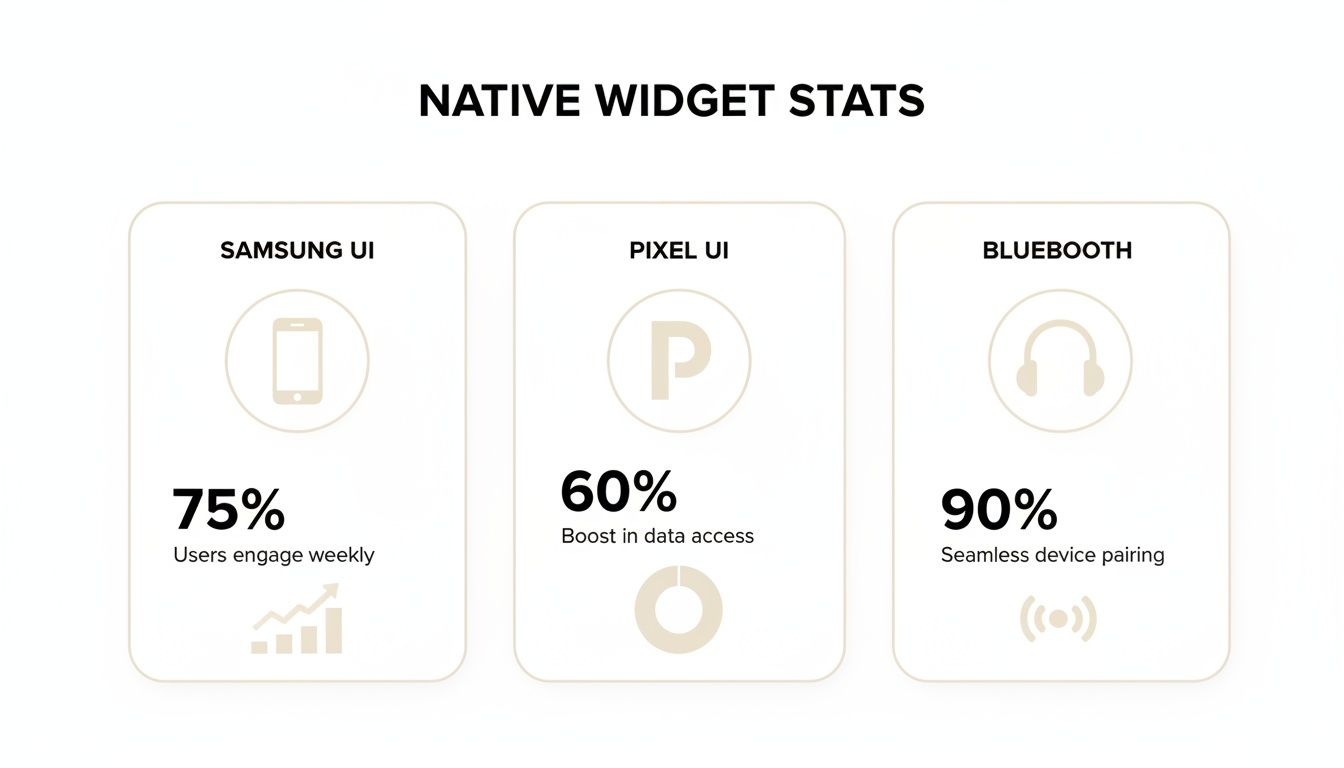
As you can see, the focus is squarely on simplicity. That's great for a quick glance, but it lacks the deeper analytics that many of us really crave.
Finding the Right Widget for You
The market for these widgets is pretty broad. Some apps are all about minimalist aesthetics, while others are packed with data-rich interfaces. For example, some widgets can chart your battery's charge and discharge cycles over days or weeks. This kind of historical data is gold for identifying which apps are the biggest power hogs or even diagnosing a dying battery long before your phone starts shutting down unexpectedly.
Choosing a third-party widget comes down to balancing the information you need with the visual style you prefer. You might want a simple, clean circle showing just the percentage, or you might be after a detailed graph that updates in real time.
One hugely popular option, Battery Widget % Level Plus, has become a go-to for many. With over 10 million downloads and a consistently high user rating, its success really highlights the demand for better battery management tools. It proves just how many of us are actively looking for a better way to monitor our device's power.
To help you choose, here's a quick look at a couple of popular options that serve different needs.
Comparing Popular Third-Party Battery Widgets
This table breaks down two of the top contenders to help you decide which one best fits what you're looking for, whether you're a power user or just want more control.
| Feature | Battery Widget % Level Plus | AccuBattery |
|---|---|---|
| Best For | Simple, clean, and highly customizable visual battery levels. | Deep-dive analytics, battery health monitoring, and charge alarms. |
| Customization | Excellent. Control over colors, size, transparency, and style. | Good. Offers some customization but is more data-focused. |
| Key Data Points | Battery %, Temperature, Voltage. | Battery health, charge/discharge speed, capacity estimation, history. |
| Foldable Phone Suitability | Great for a clean look on both cover and inner screens. | Excellent for tracking the high power drain of dual-screen use. |
| Resource Usage | Very low. It's lightweight and won't drain your battery. | Low, but the monitoring service runs in the background. |
| Cost | Free (with a Pro version available for more features). | Freemium (Pro version unlocks more historical data and themes). |
Ultimately, Battery Widget % Level Plus is perfect if you just want a better-looking and more flexible percentage indicator. On the other hand, AccuBattery is the tool for you if you're serious about extending your battery's lifespan and understanding its performance in minute detail.
Key Features to Look For
As you browse the Play Store for the perfect battery widget, keep an eye out for features that will genuinely make your life easier.
- Customization Options: Look for apps that let you tweak the widget's size, color, transparency, and the exact data it displays.
- Detailed Statistics: Advanced metrics like battery temperature, voltage, and health estimates are invaluable for tech enthusiasts.
- Low Resource Usage: A good widget provides information without becoming a battery drain itself. Always check recent reviews for comments on performance.
- Connected Device Support: If you rely on Bluetooth earbuds, watches, or other accessories, make sure the widget can pull in their battery levels, too.
Customizing Your Widget for Style and Function
Alright, you've got your new battery widget for Android on the home screen. Now the real fun begins. The default look is just a starting point; the best third-party widgets give you a ton of control to match your phone's vibe perfectly.
Most apps let you long-press the widget to pop it into a resizing mode. This is a game-changer on foldable phones, where you might want a skinny, out-of-the-way widget on the cover screen but a bigger, more detailed one on the main display. Don't be shy—play around with different sizes and placements until it just feels right.
Tailoring the Look and Feel
Beyond just resizing, you can usually dive into the widget’s settings to tweak its appearance. This is where you can make it blend right into your phone's theme.
- Color Matching: Change the widget’s text and background colors to go with your wallpaper. Many apps even have a color picker that can pull a color directly from your background for a seamless look.
- Transparency Control: Make your widget semi-transparent so your wallpaper peeks through. This creates a much cleaner, more modern feel that doesn't clutter up your screen.
- Font and Style Adjustments: Some widgets let you swap out the font or switch between different designs, like a circle, a bar graph, or just simple text.
For example, you could go for a minimalist vibe with a small, transparent widget showing only the battery percentage in a color that matches your icons. On the other hand, a power user might want a larger, data-rich widget that shows voltage and temperature right next to the percentage, using bold colors so it's easy to read at a glance.
Your widget should be a perfect blend of form and function. Take a few minutes to explore the settings—the goal is to create something that provides the exact information you need without disrupting the visual flow of your home screen.
This level of detail is what really separates the good apps from the great ones. Developers invest a lot of time into these options because they know we want that control. For instance, some of the top apps provide incredibly accurate data by measuring the real battery capacity from the device's hardware, not just using the manufacturer's rough estimates. One such app, AccuBattery, has been downloaded over 10 million times, which shows just how many of us appreciate that deeper level of function and accuracy.
How to Fix Common Battery Widget Problems
There's nothing more annoying than a battery widget for Android that's stuck in time. When your widget stops working, it's easy to assume it's broken, but most of the time, the real culprit is your phone's own power-saving features. A frozen or outdated widget is the classic symptom.
The issue usually comes down to Android's aggressive battery optimization. By default, your phone will "put to sleep" apps it thinks aren't active to save juice. The irony is that this often includes the very widget you're relying on for battery updates, preventing it from refreshing its data.
Fixing a Frozen or Unresponsive Widget
The good news is that fixing this is surprisingly simple. You just need to tell Android to stop messing with your widget's app. This one change fixes the problem over 90% of the time.
Here’s how you do it:
- Head into your phone's Settings and find the Apps section.
- Scroll through the list to find the app for your battery widget (like "Battery Widget Reborn" or "AccuBattery") and tap it.
- Look for a menu called Battery or Power usage.
- Switch the setting from "Optimized" or "Restricted" to "Unrestricted."
That's it. This small tweak lets the app run in the background like it's supposed to, ensuring your widget always shows the latest battery percentage without being shut down by the system.
Dealing with Incorrect Data or Glitches
What if the widget isn't frozen, but is showing wacky numbers or acting erratically? This is often caused by corrupted temporary files, and a quick cache clear is usually all you need to get things back on track.
Clearing an app's cache is a safe first step for troubleshooting. It gets rid of old, temporary files but leaves your personal settings, preferences, and important data completely untouched.
For more stubborn, system-wide glitches, you might need to go a step further and clear your device's entire cache partition. If you're running into persistent issues, our full guide on how to wipe the cache partition on Android can walk you through the process. It's a great way to solve a whole range of performance problems, including those affecting your widgets.
Frequently Asked Questions
Even with the perfect widget setup, you're bound to have questions. Here are some of the most common things people ask about battery widgets on Android, with straightforward answers to get you sorted out.
Do Battery Widget Apps Drain Your Battery
It's a fair question—after all, what's the point of a battery widget if it drains your battery? The good news is that most well-made widget apps are incredibly lightweight and use a negligible amount of power.
However, widgets with flashy animations or very frequent refresh rates can be a bit thirstier. The easiest way to check is to head into your phone's battery usage stats. If a widget app is sitting near the top of that list, you might want to adjust its refresh rate in the app's settings or just swap it for a simpler one.
Can I See My Headphone Battery on a Widget
Absolutely. This is one of the best uses for a battery widget. Android’s own built-in 'Batteries' widget is made for exactly this, showing you the charge level of your phone alongside connected Bluetooth gear like Galaxy Buds or Pixel Buds.
Plenty of third-party apps do this too, often with more style. It’s super convenient to see all your devices in one place so you know when your headphones need a charge before you head out the door.
A widget is great for keeping an eye on your power levels, but for those extra-long days, having a high-capacity power bank in your bag is a real lifesaver.
Why Is My Battery Widget Not Updating
If your widget seems stuck in the past, the usual suspect is Android's aggressive battery optimization. In an effort to save power, your phone will sometimes put apps to "sleep," which stops the widget from refreshing itself.
Luckily, it’s an easy fix. You just need to tell your phone to leave the widget's app alone.
- Head over to Settings > Apps.
- Scroll down and find the app for your widget, then tap on Battery.
- Switch its setting to Unrestricted.
This little change gives the app permission to run in the background, ensuring your widget always shows the latest battery info. And speaking of power, if you want to get your device juiced up in a hurry, check out our guide on the power of 45W Samsung fast charging.
At FoldifyCase, we're dedicated to protecting and enhancing your foldable phone experience. Explore our premium cases and accessories designed for durability and style at https://www.foldifycase.com.
Shop FoldifyCase foldable phone cases
Precision cases for Galaxy Z Fold & Z Flip — full MagSafe, S-Pen ready, zero bulk.